Force Re-Auth After Key Expiry
The best way to mitigate needing to go through these steps is to Disable Key Expiry for the devices that make sense when they are initially registered:
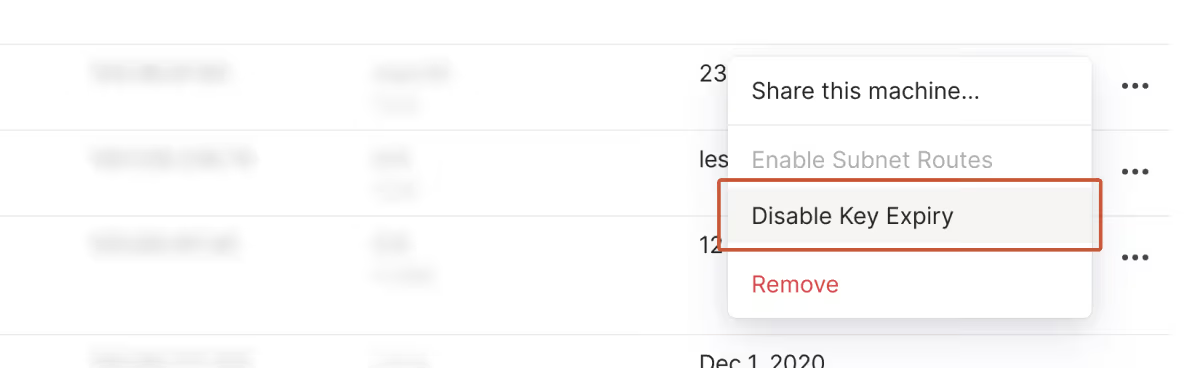
Alternatively, adding a tag to the device when it is first registered disables key expiry by default.
Re-Authentication Steps
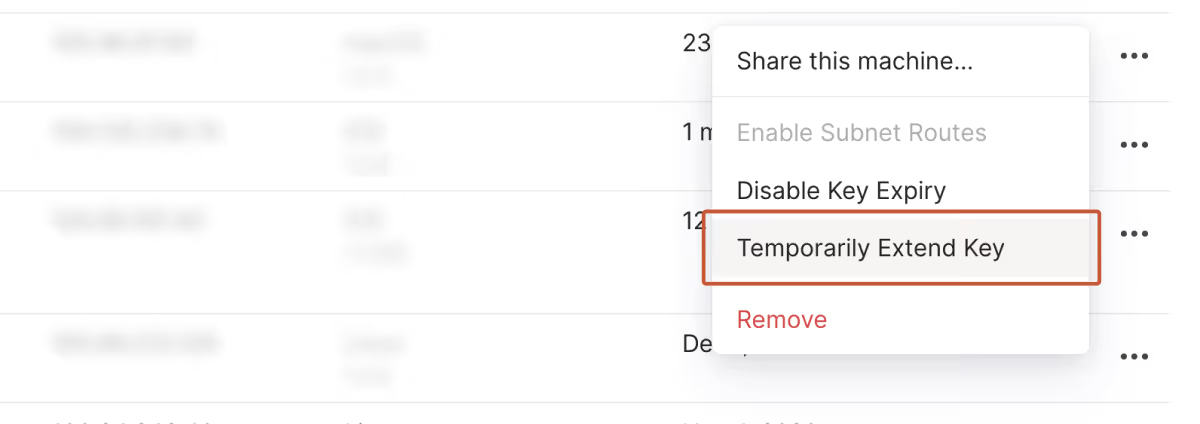
To reauthenticate an expired Tailscale device, sign in to the Tailscale Admin Console, locate your device, and select "Temporarily extend key" from the machine menu. Then, run tailscale up --force-reauth on the machine itself (or re-login in the app) to renew your credentials.
Step-by-Step Reauthentication
1. Extend the Key in the Dashboard
Because expired devices immediately drop active network connections, you must first give your device a temporary window to reconnect:
- Go to the Machines page of the admin console.
- Find the expired device.
- Click the menu icon (three dots) on the far right and select Temporarily extend key. This grants a 30-minute grace period to log back in.
2. Reauthenticate on the Device
Once the key is extended, reconnect by doing one of the following while the device has internet access:
- Via CLI: Run the following command:
tailscale up --force-reauth
- Via Desktop/Mobile: Open the Tailscale app and click Log in or Connect.
Via Headless Server: If the grace period expires or you are managing a remote node via SSH, you can generate a fresh key directly from the Tailscale Auth Keys Console and run:
tailscale up --auth-key=tskey-auth-...
Managing Future Expirations
Tailscale enforces key expiry for security, but you can change these settings to prevent interruptions for trusted machines, servers, and subnet routers:
- Disable key expiry: On the Machines page, open the machine menu and select Disable key expiry.
- Tagging: Applying ACL tags to servers and nodes automatically disables node key expiry, allowing them to remain connected without manual intervention.