Teams Meeting Room Configuration
:::info
For existing conference rooms that are to be "upgraded" to have Teams Meeting Room functionality, make the changes below. For NEW conference rooms that will have Teams Meeting Room functionality, create the new account in format mtr-$confRmName to easily identify which rooms are Teams-enabled. The steps below will assume that the account already exists or that it was created and migrated from on-prem to M365 already.
:::
-
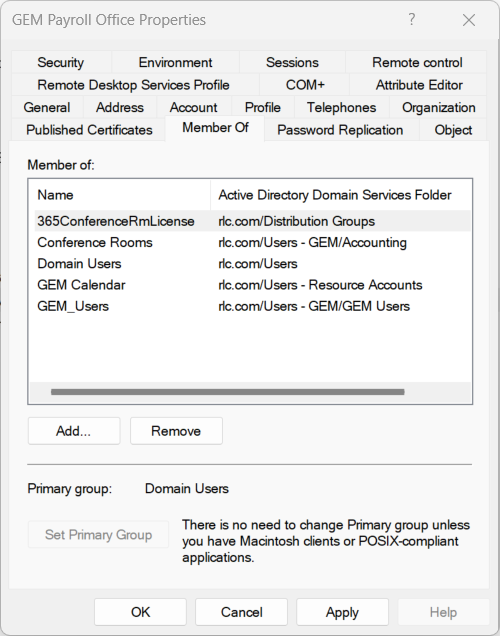
In Active Directory, verify that the room is in the following groups:
-
365ConferenceRmLicense
- Conference Rooms
- Domain Users
- GEM Calendar or RL Calendar depending on company/location
- GEM_Users or RL_Users depending on company/location
- Verify that the Address data is accurate and complete
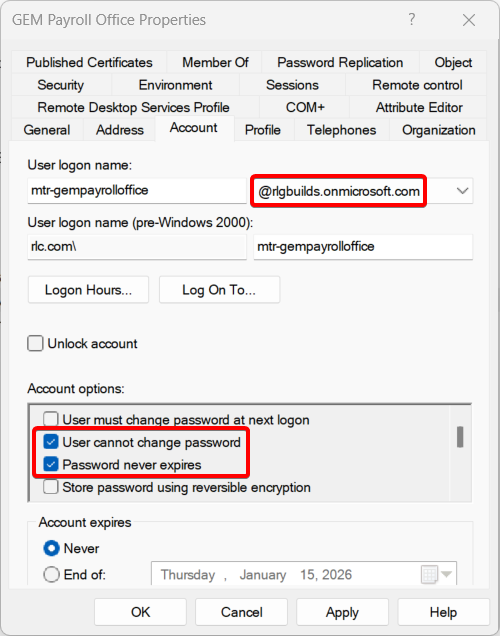
- On the Account tab, set the User logon name suffix to
@rlgbuilds.onmicrosoft.cominstead of@rlgbuilds.comor@rlc.comin the dropdown menu
:::warning This is required to allow the Teams Meeting Room functionality to work properly :::
- Also on the Account tab, select the checkboxes for User cannot change password and Password never expires
- If the account is in a Disabled state, set it to Enabled so that it can be used to log into the Teams Meeting Room equipment
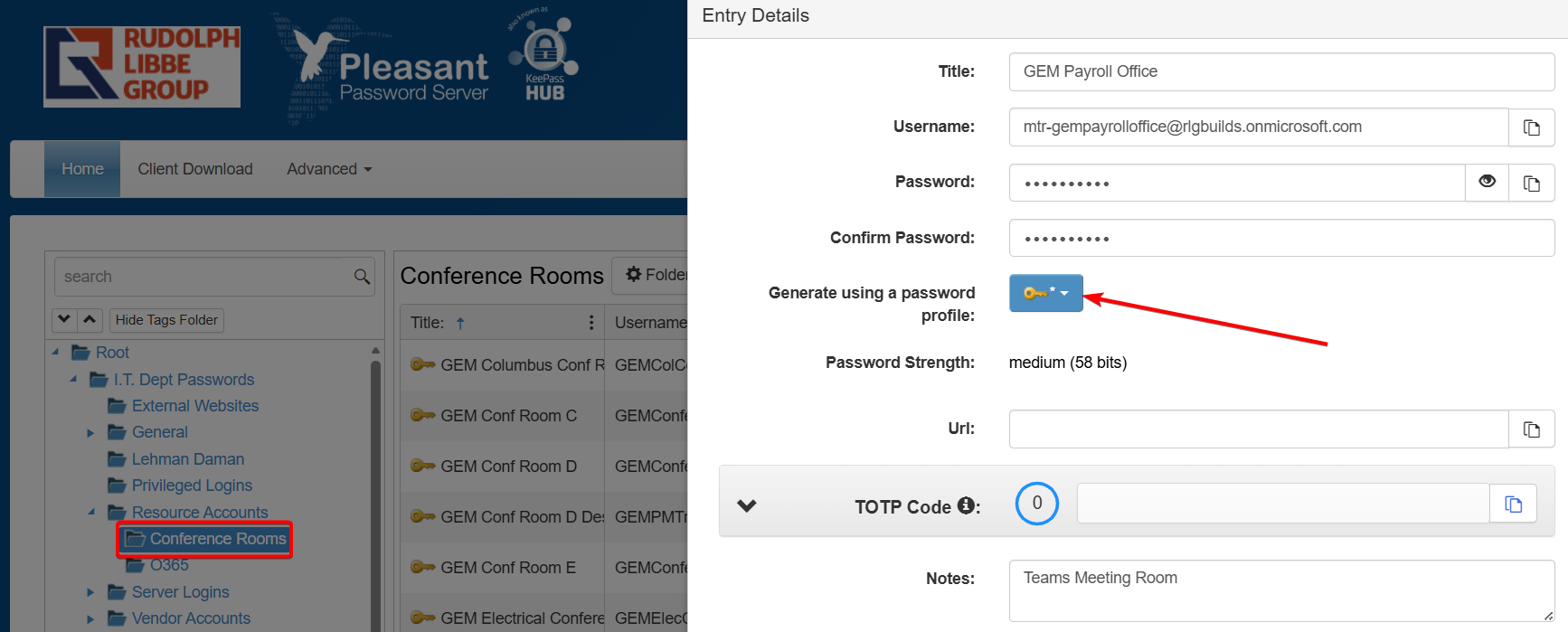
- Open Pleasant Pass and add the account to the Conference Rooms section under Root > I.T. Dept Passwords > Resource Accounts > Conference Rooms
- Click the button with the key on it to generate a secure password and select the 10char option
-
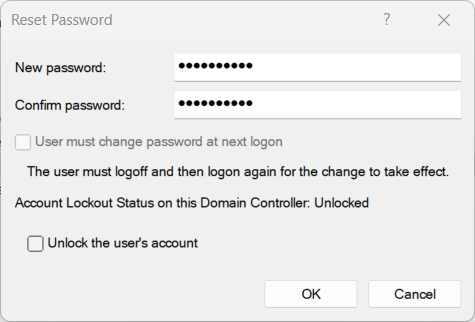
Once you have a password you are satisfied with, copy it to your clipboard and save the entry in Pleasant Pass, and then right-click the object in AD and click Reset password... and paste it in twice to confirm
-
Be sure that the User must change password at next logon box is NOT selected
- In the M365 Admin Center, assign a
Microsoft Teams Rooms Prolicense to the resource - You may need to purchase additional licenses if there are none available
- Once the steps above have been completed and the license has applied successfully, let Peyton/the requestor know that the account has been created or modified to match other Teams Meeting Rooms in the environment and provide the username and advise that the password is in Pleasant Pass