Colorful Text using Figurine
https://youtu.be/GPQ6k2GR17I?si=Vk6hID0k7DPr-Tsh
Download and Installation
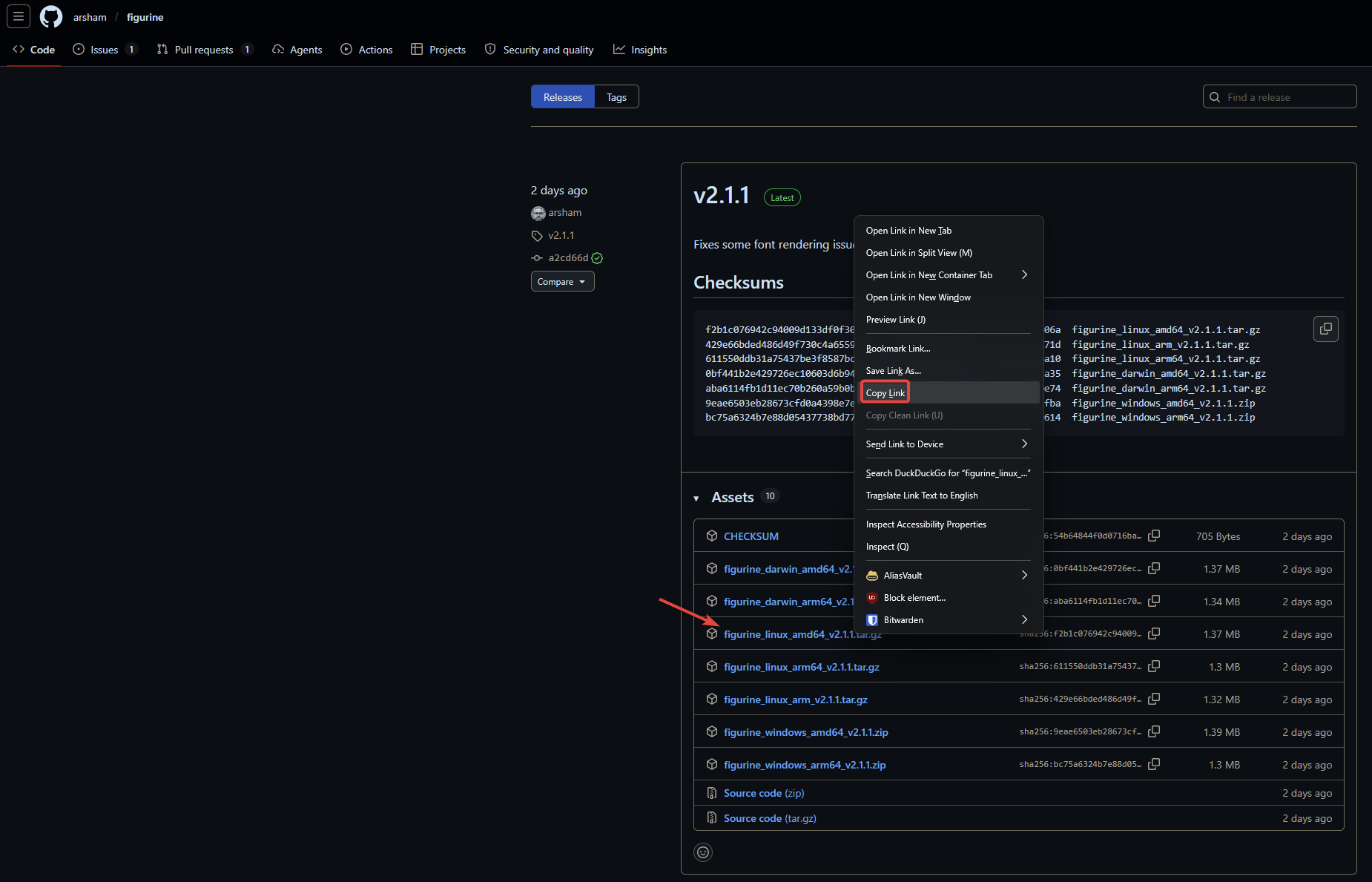
- Go to the GitHub page for Figurine (https://github.com/arsham/figurine) and click on Deployments.
- Execute the command
uname -mto view the architecture of the machine you are working on. - Locate the most recent version that matches the architecture of the system you’d like to install it on (
AMD64in most cases, thoughARM64may be applicable as well). Right-click it and click Copy Link.
- On the system you want to install Figurine on, make a temporary directory using
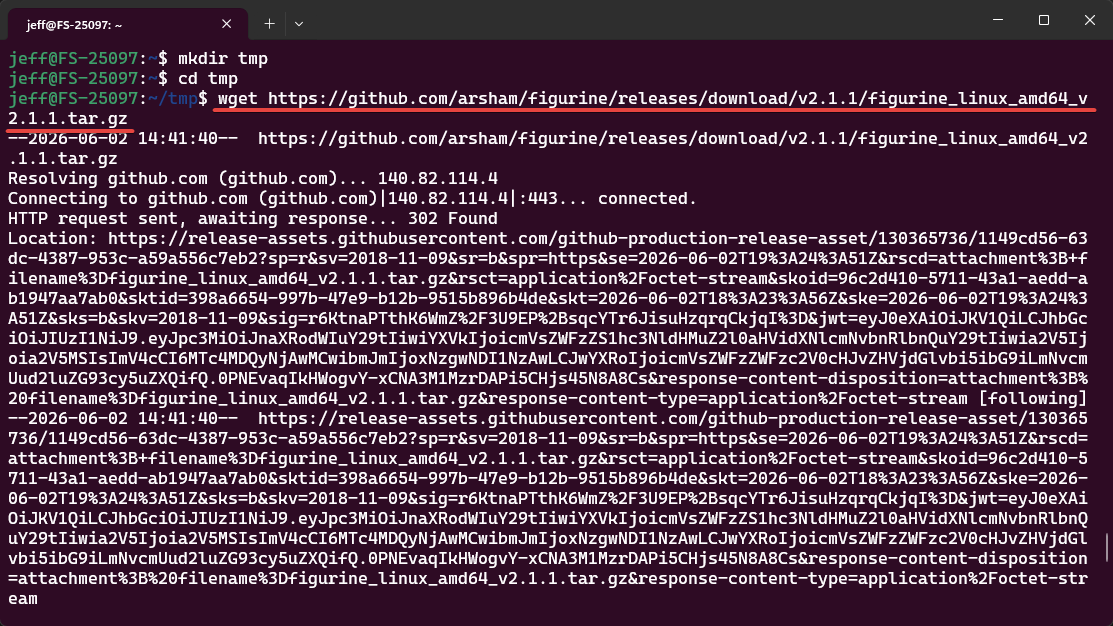
mkdir tmpand thencd tmp. - Once in the tmp directory, use the
wgetcommand followed by the pasted link you copied in step 2. Press Enter to execute the command.
wget https://github.com/arsham/figurine/releases/download/v2.1.1/figurine_linux_amd64_v2.1.1.tar.gz
 6. Once the tar.gz file has been downloaded, extract it using the following command:
tar -xvf figurine_linux_amd64_v2.1.1.tar.gz
- The Figurine binary will be nested within a folder named
deploy. In order to have Figurine accessible in your \$PATH, you will need to move it to the/usr/local/bin/directory using the following command:
# From within the deploy folder:
sudo mv figurine /usr/local/bin/

# From within the tmp folder:
sudo mv deploy/figurine /usr/local/bin/
- Once it’s in your \$PATH folder, you can execute the
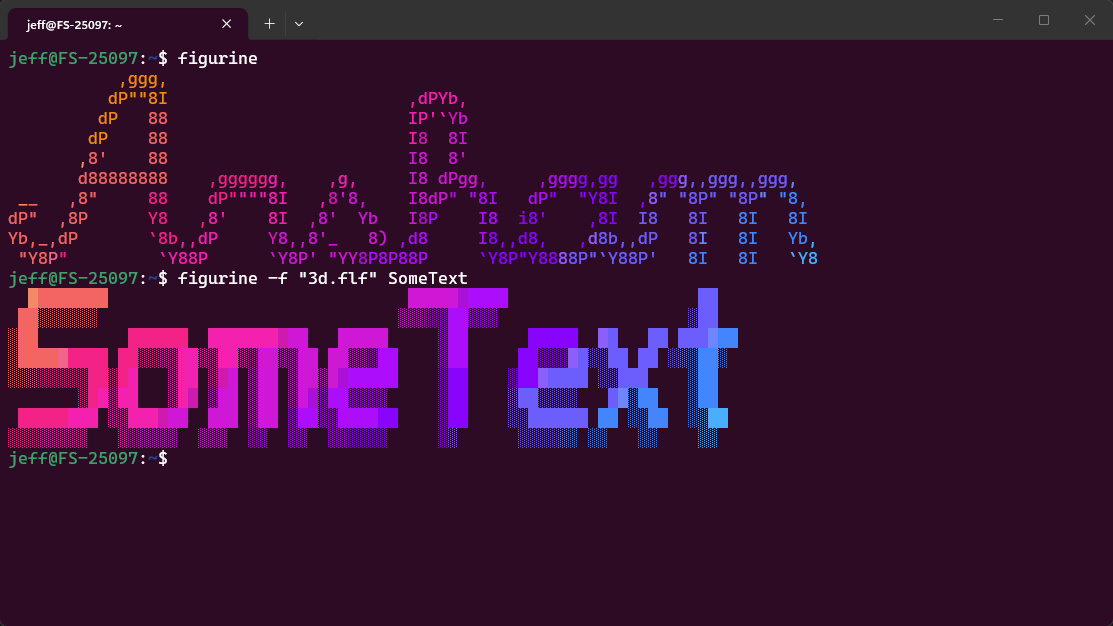
figurinecommand and it will display “Arsham” (the developer’s GitHub username) in a random font of the 300+ options. - You can specify a specific font using the following command:
figurine -f "3d.flf" SomeText
Use Case and Implementation
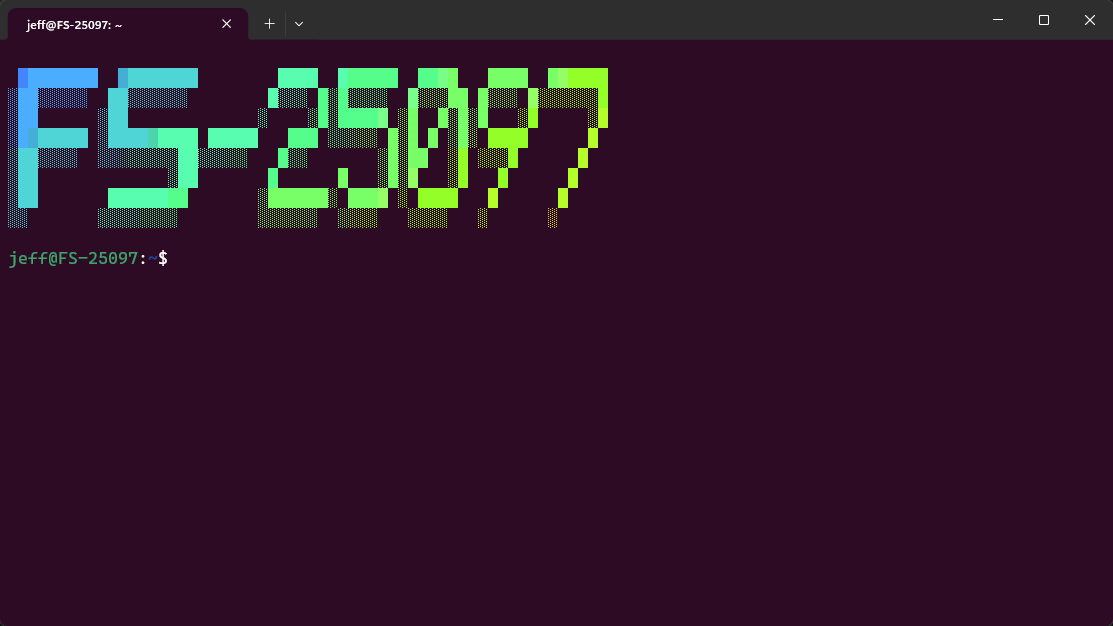
This can be added to /etc/profile.d/figurine.sh (the script does not exist and needs created) to display any text - like the hostname of the machine being logged into - when the terminal is opened or an SSH session is initiated.
sudo nano /etc/profile.d/figurine.sh
#!/bin/bash

echo ""
/usr/local/bin/figurine -f "3d.flf" $HOSTNAME
echo ""
It can also be scripted/automated using Ansible using Alex Kretzschmar’s existing infrastructure code available at https://github.com/ironicbadger/infra/tree/main.