Enable/Disable Facilitator for Teams Meetings
:::info
As of the writing of this document (8/27/2025), the ability to enable/disable Facilitator for Teams Meetings does not exist in New Outlook - the ability to do so still exists in Outlook Classic/Old Outlook and directly within Teams.
A Copilot license is required for Facilitator functionality, and all meeting notes will be put in Loop for reference.
:::
Enabling/Disabling Facilitator in Outlook Classic/Old Outlook
- Create a new meeting or edit an existing meeting that is Teams-enabled (not in-person only)
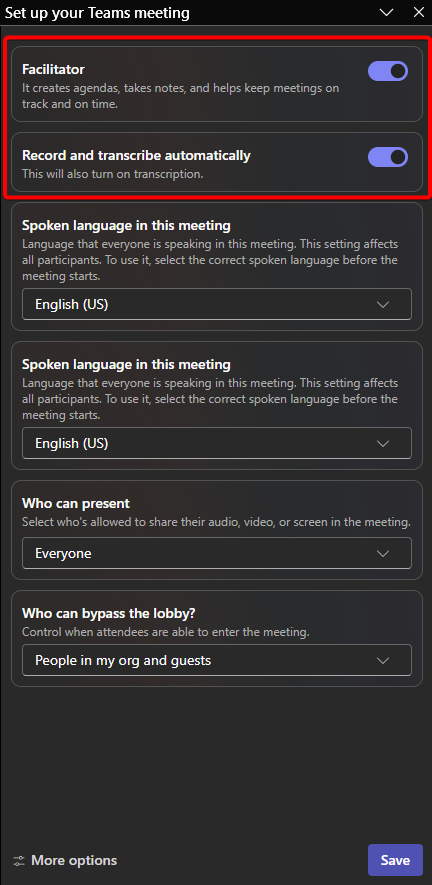
- Once Teams functionality exists on the meeting, you will be able to see and click on the Setup button, which will cause a flyout pane to appear on the right side of your Outlook client

- In the new flyout pane, you can enable/disable Facilitator as well as recording and transcription for the meeting
Enabling/Disabling Facilitator in Teams
- Create a new meeting or edit an existing meeting that is Teams-enabled (not in-person only)
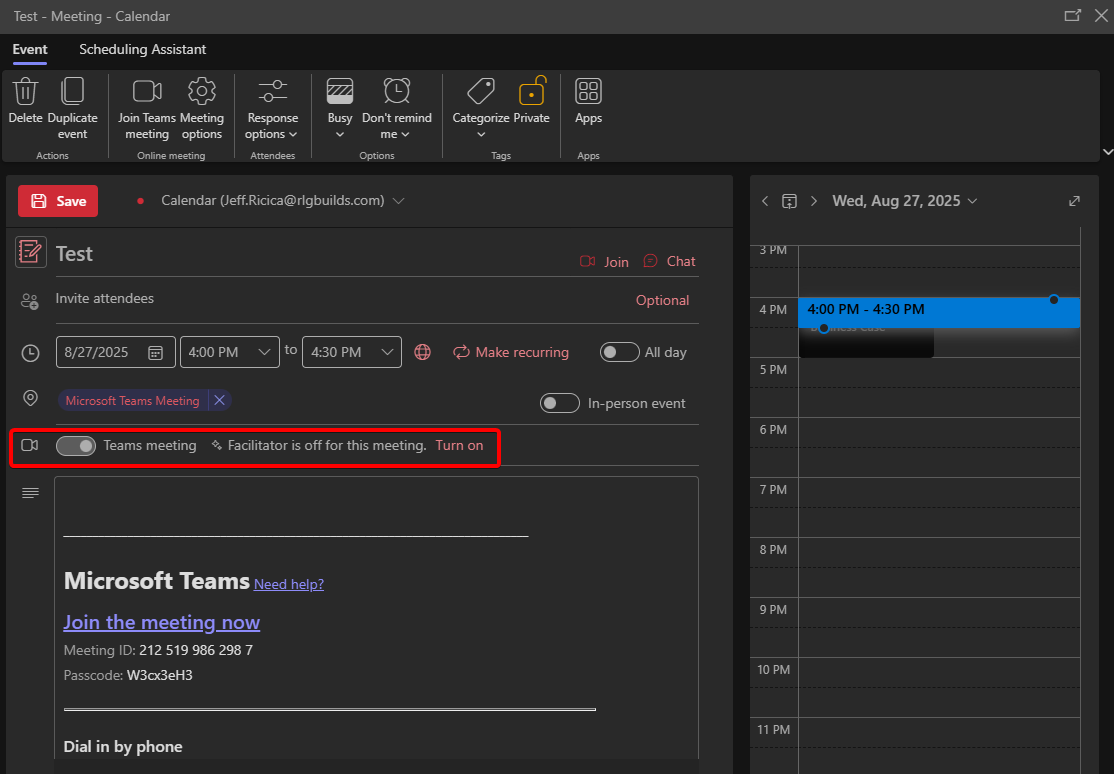
- Once the meeting is Teams-enabled, you will see that
Facilitator is off for this meeting.with the option to turn it on next to that statement.
- Alternatively, you can click on
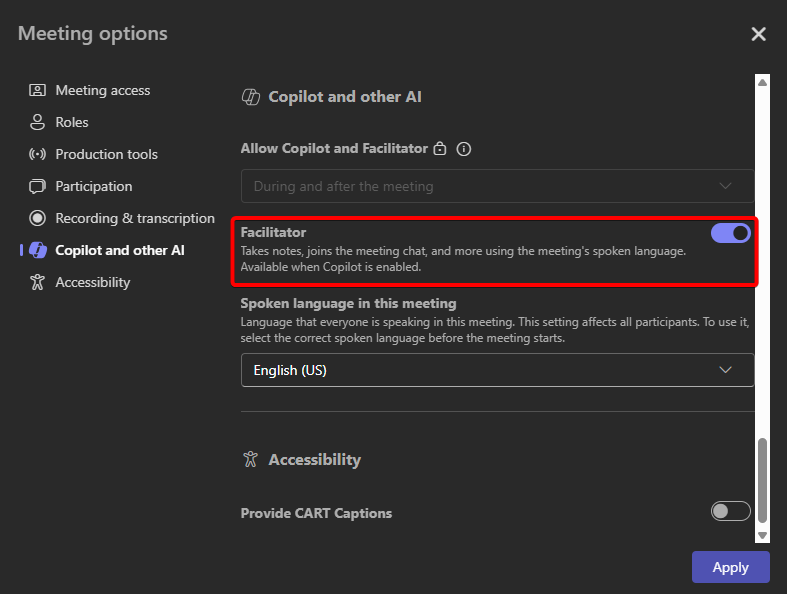
Meeting Optionsand in the new window that appears you will see theRecording & TranscriptionandCopilot and other AIoptions in the left navigation. Recording and transcription can be enabled via that section, and Facilitator can be turned on/off